
The following article provides instructions for adding additional file types in the Folder-Import module.
Supported File Formats
Transact can process the following file types.
| lucene-search-classification-sample
(Folder Only) |
image-classification-sample
(Folder Only) |
test-advanced-extraction
(WebUI Upload Only) |
test-classification
(Folder Only) |
test-extraction
(Folder Only) |
test-table
(Folder Only) |
Operator WebUI Upload | Email Import Attachments | UNC Folder |
| TIF | TIF | TIF | TIF | TIF | TIF | TIF | TIF | TIF |
| TIFF* | TIFF* | TIFF* | TIFF* | TIFF* | TIFF* | TIFF* | TIFF | TIFF |
| PDF† | PDF† | PDF† | PDF† | |||||
| ODT1 | ODT2 | |||||||
| ODS1 | ODS2 | |||||||
| ODP1 | ODP2 | |||||||
| ODF1 | ODF2 | |||||||
| SXW1 | SXW2 | |||||||
| BMP1 | BMP2 | |||||||
| JPEG1 | JPEG2 | |||||||
| JPG1 | JPG2 | |||||||
| PNG1 | PNG2 | |||||||
| HTML1 | HTML2 | |||||||
| HTM1 | HTM2 | |||||||
| XLS1 | XLS2 | |||||||
| XLSX1 | XLSX2 | |||||||
| PPT1 | PPT2 | |||||||
| PPTX1 | PPTX2 | |||||||
| DOC1 | DOC2 | |||||||
| RTF1 | RTF2 | |||||||
| TXT1 | TXT2 | |||||||
| PSD1 | PSD2 | |||||||
| ODG1 | ODG2 | |||||||
| SXI1 | SXI2 | |||||||
| SXC1 | SXC2 | |||||||
| SXD1 | SXD2 | |||||||
| WPD1 | WPD2 | |||||||
| LibreOffice Supported Types1 | LibreOffice Supported Types2 | |||||||
| * Transact Version 3.0.3.4+
1 Configuration is needed for the mail-import.properties file. 2 Transact Version 3.1.2.3+, configuration is needed for the folder-monitor.properties file as well. † Instructions to utilize PDF XFA require additional steps; see PDF XFA Configuration for configuration instructions. |
||||||||
However, in order to process some formats you will need to make a few settings alterations.
- Navigate to the Ephesoft/Application/WEB-INF/classes/META-INF folder.
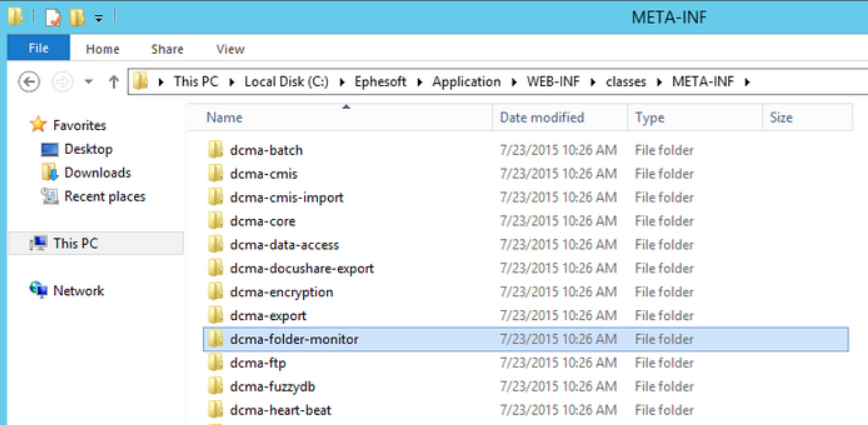
- Open the property file named folder-monitor.properties in a text editor as an admin.
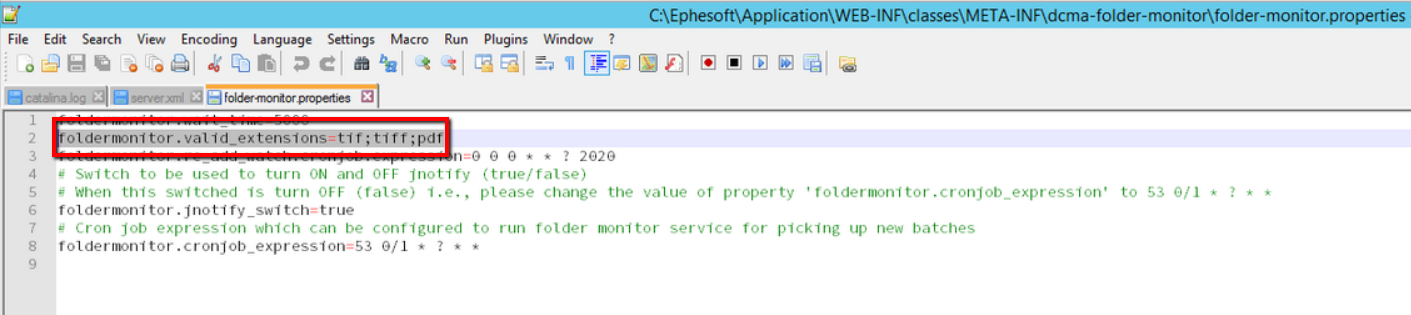
- On line 2 of the property file, add the supported file extensions that you would like Transact to process.

- Restart Transact.
PDF XFA Configuration
While Transact does support PDFs, PDF XFAs require additional steps for configuration.
Note: PDF XFA processing is meant for non-dynamic files. Using dynamic PDF XFA files may cause a loss of dynamic elements in the flattening process.
- Navigate to the folder-monitor.properties folder located at [Ephesoft-Home]/Application/WEB-INF/classes/META-INF/dcma-folder-monitor/folder-monitor.properties.
- Open the file and locate the pdf.xfa.process.static.content property.
- Change the default setting false to true.
- Restart Transact.